Monday, June 5
- Class 7
- Drawing Exercise: Bullseye and Starburst
- Drafts of Project 1
- In Progress Critique and Discussion
- Break
- Class 8
- Work Session
- Break
- Class 9
- Drawing Exercise and Demo
- Preparing to Finalizing Work
- Assignments:
- Finalize Project 1
- Character Design and Color Swatches
- Optional Alternate Character Design & Color
- Sequence For Sprite Animation (Walk, Rotate, etc)
- Format Using Project 1 Template
Class 7
Drawing Exercise: Graphic BG: Bullseye and Starburst
As a change of pace for drawing, the following brief demonstration will be geared towards some common background graphic techniques. You may recognize them from things you have seen online or in advertisements: bullseye and starburst.
Bullseye


A bullseye graphic can be made quite easily by duplicating a circle and decreasing or increasing its size. In order to keep the shapes centered, it is useful to use "Paste In Place" rather than a simple paste operation. Then, holding Shift and Option, you can scale something from the center. Alternating colors makes the bullseye effect appear. Consider alternate ways of using color for bullseye, including transparency or blending modes.
Starburst


A starburst graphic is a little more complex to create. It also commonly used as a background (sometimes even overused). A starburst begins as a cirlce that has been given a "Dashed Line" stroke. Then, through the Object menu, the path is expanded for both Fill and Stroke. This turns the dashed line into a series of closed paths. Select only the inner anchor points, and then Control + Click 'Average' and check 'Both'. This will extend the inner points into the center of the circle. A further step would be to use a "Clipping Mask" to cut the starburst to the size of your document. Consider alternate ways of using color for starburst, including transparency or blending modes.


Project 1 Drafts and Discussion
At the beginning of the work session, a short demonstration will be given on using color in Illustrator. Project 1 is designed to have a limited color palette, and so determining a few colors as the basis for the artwork is an important step. The focus of this presentation will be the color guides that are available to help determine colors that work well together visually. Later in the semester we will look at color systems with more detail.
Following this your time should be used in developing your vector illustrations for Project 1. There will be about half of the class time devoted to this work session. After that, you will be required to submit a rough version or draft of your Project. This submission should be made on D2L. General guidelines will be given, but to summarize, you will use "Save For Web" to output an image from your workfile and this image will be used for feedback.
- One - Letter Sized Document Submitted as PNG
- Draft and Rough Sketches in Vector of Project 1 Development
- Multiple Versions/Drawings on one page
- Some variety of your character through sketching
- Your work as its being developed, in-progress
- May include notes as type, but not required
- Demonstrate your progress and process
- "Save For Web" PNG-24 with No Transparency
- Filename: "lastname_project1_draft.png"
- Dropbox Submit Project 1 Sample
- Will use submitted drafts for discussion and critique.
Class 8
Project Work Session
Continue developing your "character". Focus on generating multiple versions of your "character". The goal for this portion of the project is not to have to start over from scratch for each additional sketch but to use operations like copy/paste in the same way you did when developing different versions of the illustration. If you have general shapes - as layers at the bottom - then you can reuse those and focus your attention on making adjustments to the location/perspective of the details. Your alternate versions should simulate simple frame animation like rotation or walk cycle. They will reflect how your character might move in the theoretical game.
Use your Illustrator work file as a sketchbook, allowing yourself to create multiple versions while also making sure your layers are organized and easy to manage. Towards the end of the project, you will simply copy and paste from your work file into the print presentation template. It isn't necessary to worry to much at this time how it will fit in the print presentation.
Class 9
Drawing Exercise and Texture Demonstration
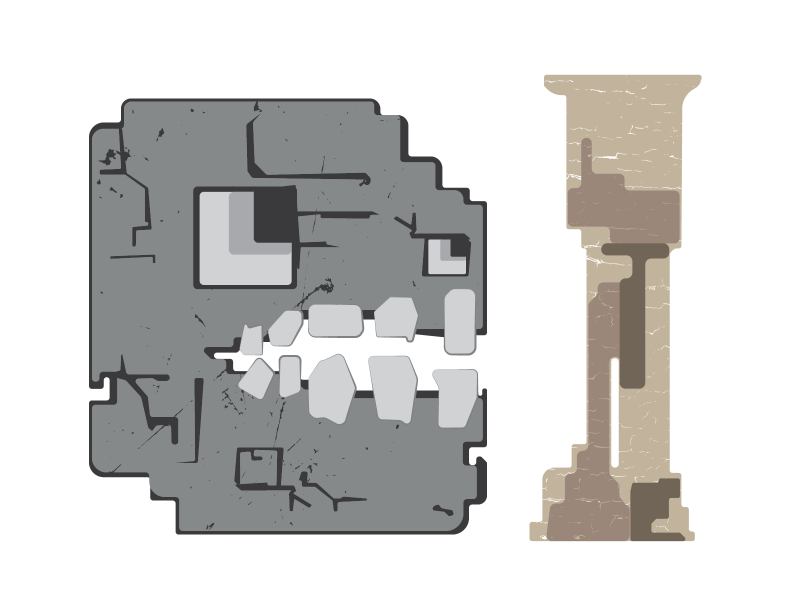
As I build my character illustrations, game title, logo, or other graphic elements, I am always trying out different ideas. I start with a sketch and then simple vector version. Developing the first version is important because it will allow you to generate alternative designs. Alternate versions are where I test different colors, modifications to the form or design, and also texture or pattern.
Texture
Vector graphics typically have solid color or tend towards flatness. Sometimes illustrators or designers use texture in combination with color to give more dynamic characteristic to the visual design through variety. To replicate texture with vector graphics, one approach is to use a layer that has a texture and apply some opacity or use the pathfinder to combine. These processes can be applied a number of different ways to achieve things like a 'grunge texture' or 'paper texture' or just about anything.
There are two canvas texture images that you might try for experimenting with the process:
gessoed canvas and raw canvas


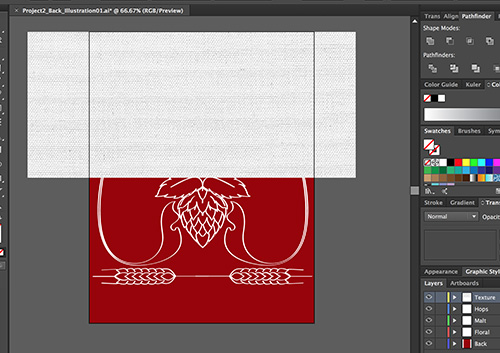
The first step is to import and size your texture image. The texture image should cover all of the content you want to apply it to.
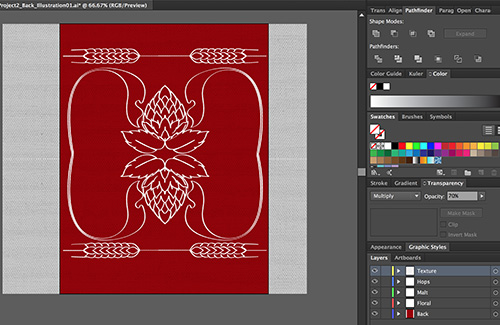
In the Transparency panel, I use the blending mode "Multiply" for in this example and then bump the Opacity down. There isn't one for sure way that this will work every time - it depends on the color in the texture and/or the content it is overlaying. It is best to experiment to find the best fit for your content. With Multiply and a low opacity like 40% - it looks like my canvas texture may work.
With a high contrast photo image, you can also use the Image Trace options of Illustrator to convert to Vector Shapes from the raster graphic. We haven't looked at this yet, so I have some available in a PDF that you can open in Illustrator. Select one and then paste it in the layer of your illustration just above where you want to apply it. Then Direct Select both the texture and the vector layer you want to apply it to and use the Pathfinder Minus Front. This will "cut out" the texture shapes from the vector path, creating openings that will look weathered or distressed. A more detailed tutorial might be found online here.
Another way to address the flatness of a vector shape could be through pattern. There are some pattern tools available in Illustrator and also some libraries of preset patterns. If you would like to use pattern then it is important that you make your own in order to fit with the design process of your character. There will be a quick demonstration of this process in class. But, like texture, pattern making will take some experimentation and practice in order to get it right.
You are not required to use Textures or Patterns in your projects, but it might be an interesting way to generate some more unique visual characteristics in vector paths. They are both processes that are commonly used in creating logos or other vector graphics.
Project 1 Layout
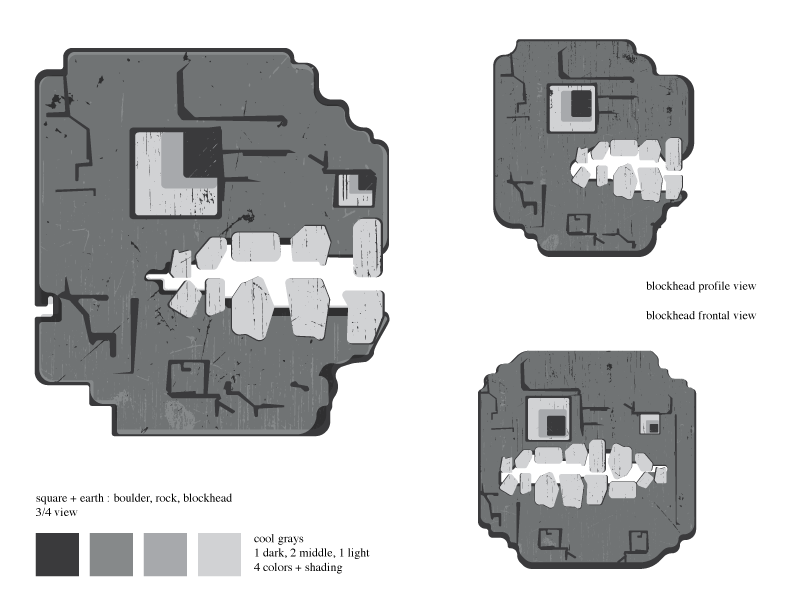
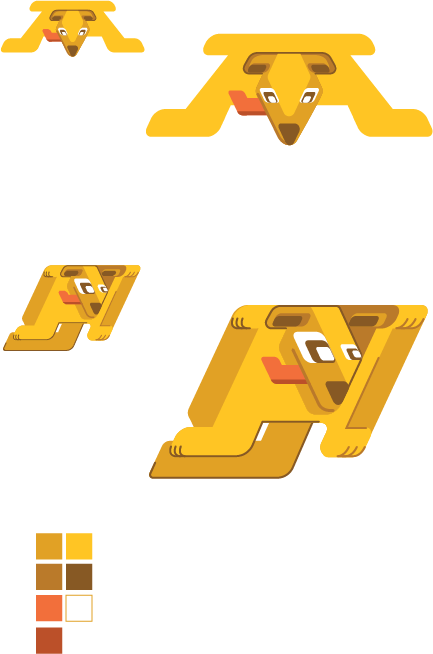
There is a template file that can be used for preparing your project for printing. Ideally you should copy/paste or move your character designs into the template to prepare a print presentation.
Project 1 Templates ZIP Download